
The Nextera Accord module map
Nextera Accord has nine functional modules, and their order is not the menu order but the order one lease contract is worked through: the contract arrives through Lease, changes through Lease Transactions, is revalued each month through Batch Transactions, is billed and paid through Invoice and Payment, and then lands in Journal Entries, Ledger and Reports.
If any term here is unfamiliar, read Lease accounting concepts first — this page assumes it.
The chain from contract to ledger
Section titled “The chain from contract to ledger”flowchart TD
L[Lease] --> CAL[Calculate]
LT[Lease Transactions] --> CAL
CAL --> CF[Cash Flow schedule]
BT[Batch Transactions] --> CF
L --> INV[Invoice]
INV --> PAY[Payment]
CF --> JE[Journal Entries]
INV --> JE
PAY --> JE
JE --> LG[Ledger]
JE --> JF[Journal Feeds]
JF --> GL[General ledger host]
LG --> RPT[Reports]
| Order | Module | The question it answers | Menu |
|---|---|---|---|
| 1 | Lease | What is this contract, is it a lease, and what is it worth? | Lease |
| 2 | Lease Transactions | What changed after the lease started, and what is it worth now? | Lease Transactions |
| 3 | Batch Transactions | What are this month’s values across the whole portfolio? | Batch Transactions |
| 4 | Invoice | What has the Lessor billed, and against which lease? | Invoice |
| 5 | Payment | What did we pay, from which account, against which invoice? | Payment |
| 6 | Journal Entries | Which journals were created, and have they been posted? | Accounting › Journal Entries |
| 7 | Ledger | What do the movements per account look like after posting? | Accounting › Ledger |
| 8 | Journal Feeds | Have the journals been sent to the host general ledger? | Accounting › Journal Feeds |
| 9 | Reports | Which schedules and breakdowns can be produced for the close and for audit? | Reports |
| — | Home | What is waiting for me today? | Home |
| — | System | Master data, users and access rights | System |
The same shape in every module
Section titled “The same shape in every module”These modules use a uniform set of screens, so learning one of them means learning most of the rest.
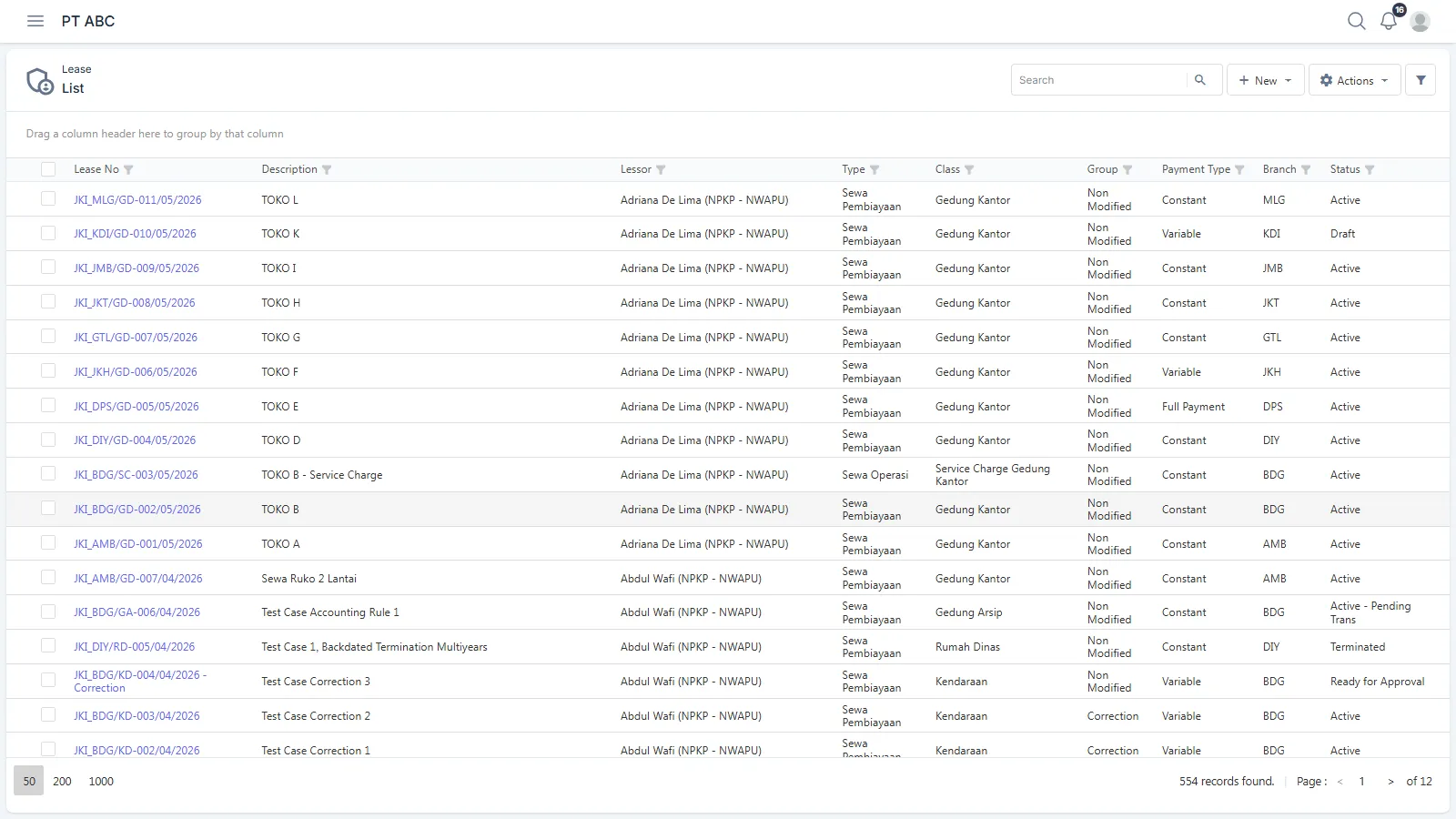
The list page. A grid of that module’s records, with Search, a New button, Actions and a filter icon. Column headings can be dragged onto the Drag a column header here to group by that column strip to group by them, and pagination runs 50 / 200 / 1000 rows, with a “… records found” line at the bottom right.
The details page. Opened by clicking the record number — Lease No, Invoice No, Payment No and so on. The line under the title shows the record’s identity and its Status; everything else is grouped into tabs down the left. The Back button returns you to the list.
Edit mode. The Modify action switches the page into edit mode — the Actions and Back buttons become Save and Cancel, and every tab other than the one being edited is disabled until you save.
Shared tabs. Approval shows where the record sits in the approval flow, Documents holds supporting attachments, and Activities records the change history and who made each change. Not all of them exist in every module — see the table below.
| Module | Approval | Documents | Activities |
|---|---|---|---|
| Lease · Lease Transactions · Invoice · Payment | yes | yes | yes |
| Journal Entries | — | yes | yes |
| Batch Transactions | — | — | yes |
| Journal Feeds · Ledger · Reports | — | — | — |
The Actions button. The Actions menu on the details page runs whichever actions the current Status allows. The recurring vocabulary: Modify, Validate, Calculate, Request for Approval, Approval, Reverse, Cancel, Posting, UnPosting, Run and Extract.
Who may do what. Decided by the Access Rights records granted to a Group in the Users module — of type Menu Access for menus and actions, and Authorization for data scope. The approval path is decided by the Approval Matrix, per Transaction Type, Criteria and Branch, with one row per Level.
The lease contracts being measured. The starting point of the whole product.
Primary record. A Lease, identified by its Lease No. Menu Lease.
What you fill in. Eight reference fields on the New form — Lease Branch, Lease Sub Branch, Contract No, PO Number, Lease Description, Lessor, Lease Class, Lease Category — then the answers on the Questionnaire tab, then all the dates and values on the General tab, then the Payment Plan rows.
What is calculated or inherited. Lease No from Auto Number. Lease Type from the Questionnaire — and that field is the one deciding whether the lease is measured. Lease End Date from Expiry Date plus Renewal Period when Renewal Option is ticked. The whole of the Cash Flow tab from the Calculate action. For Payment Types Constant, Single and Full Payment, the Payment Plan contents are generated from the payment fields on the General tab as well.
Tabs. General · Questionnaire · Payment Plan · Cash Flow · Transactions ·
Approval · Documents · Activities, plus Result, which appears between Calculate and
approval. Cash Flow and Result exist only on leases that are measured under the standard.
Actions and statuses. Draft → Validate → Validated → Calculate → Ready for Approval → Request for Approval → Waiting for Approval → Approval → Partially Approved
→ Active. Cancel is live only on Draft; Reverse is live up to but not including
Active; Modify is live on Draft and Active. Two further end states come from the
system side, Terminated and Mature.
Outputs. The daily schedule on the Cash Flow tab, with a download button; Extract on the list page to export the grid to Excel.
Things to watch for. After Active, no action returns the lease to an earlier stage. Any
change becomes the next module’s work.
Lease Transactions
Section titled “Lease Transactions”Everything that happens to a lease after commencement.
Primary record. A Lease Transaction against one Lease. Menu Lease Transactions.
Five Trans Types, as they appear in the list page filter:
| Trans Type | What it is for | Produces a new schedule |
|---|---|---|
Modification |
Remeasurement and contract modification | yes |
Correction |
A correction to a lease already running | yes |
Termination |
Ending a lease before its term expires | no |
Adjustment |
A value adjustment | no |
Transfer Asset |
Moving a lease between branches | no |
What you fill in. Trans Type, Lease No, Effective Date and Notes — the last two are required — then, for a Modification, a Modification Type and the new values in the Your Changes column.
What is calculated or inherited. The Current Value column is filled automatically with the lease’s position on the Effective Date you chose, and the Your Changes column starts from those same values. The system flags for itself which fields moved. Modification Type decides which fields may be changed, so do not be surprised when the field list changes as you switch it.
Payment plan. Up to three grids side by side — Current Payment Plan, which is read-only,
New Payment Plan after the change, and Adjusted Payment Plan, which appears only for some
Modification Types. The third grid can be exported to Excel and imported back.
Tabs. General · Cash Flow (only for Modification and Correction) · Documents ·
Approval · Activities.
Actions and statuses. The same as Lease — Validate, Calculate, Request for Approval,
Approval, Cancel, Reverse — ending at Approved. The list page also offers Validate,
Calculate, Request for Approval and Approval in bulk over the ticked rows.
Batch Transactions
Section titled “Batch Transactions”One run of a scheduled job across the whole portfolio.
Primary record. A Batch, identified by its Batch No. Menu Batch Transactions.
What you fill in. Batch Date, Job Name and Notes. The parameter fields below change with the job you choose — the parameters belong to the job, not to the screen.
What is calculated. Start Time and Finish Time are recorded by the system; Status moves on its own as the job runs.
Tabs. General · Activities. This module has neither a Documents tab nor an Approval tab.
Actions and statuses. Modify and Cancel only while the batch has not been run; Run while the batch has not been run or has failed. The status moves from not yet run, through running, to Completed or failed.
Things to watch for. Run is available only on the detail page, one batch at a time, and it is synchronous — the screen waits until it finishes. The job used for the monthly close is Monthly Valuation, run once per period with the Batch Date at period end. The rest of the job catalogue is configured per installation.
Invoice
Section titled “Invoice”Bills from the Lessor against leases that are already active.
Primary record. An Invoice with Invoice Detail rows. Menu Invoice.
The thing to understand first. One Invoice Detail row is one Lease — not a free-form
good or service. The grid’s first column is literally headed Lease, and the row choices come
from the list of leases that may be billed.
What you fill in. On the New form, the header only — Invoice Type, Invoice Branch,
Payment Branch, Contract No, Lessor Invoice No, Lessor, Invoice Date,
Payment Terms, Due Date, Notes. The rows are added afterwards, on the details page in
Modify mode, through the + button in the grid header.
What is calculated. Due Date from Invoice Date plus the term on Terms of Payment.
Each row’s value from Tax Base Amount, Total Cost, VAT Code and WHT Code. The
total columns on the right — Sub Total, Total Cost, Total VAT, Total WHT, Total Due,
Total Paid, Outstanding — are all read-only.
Two list views. The selector under the title switches between List by Invoice and
List by Lease; the radio to the right of the title switches between List and Aging.
The Aging view adds Current, 0-30 Days, 31-60 Days, 61-90 Days and 90+ Days columns.
Actions and statuses. Draft → Validate → Validated → Request for Approval →
Waiting for Approval → Approval → Partially Approved → Approved. Cancel on Draft,
Reverse after validation.
The Validate action on Invoice and Payment opens a dialog with a Notes field and a reminder to quote the Memorandum Number and the Lease No. Fill that field in; it is saved as part of the trail.
Payment
Section titled “Payment”Settlement of one or more Invoices.
Primary record. A Payment. Menu Payment.
What you fill in. On the New form, the header only — Payment Type, Payment Date,
Payment Branch, Currency, Lessor, Notes. After that, on the details page, two grids:
Invoice Allocation (which invoices are settled and for how much) and Amount Detail
(which cashbank the money leaves from, and by what method).
What is calculated or inherited. Total Payment in the header is the sum of all the Amount Detail rows — the funding source drives the header value, not the other way round. Picking an invoice in the allocation dialog fills Payment Amount with its Outstanding Amount. Payment To is picked from the Lessor’s bank accounts, and fills in Bank Account Name, Bank Name and Bank Branch itself. Rate can only be changed when the Currency is not IDR.
Actions and statuses. Exactly the same as Invoice, line for line.
Journal Entries
Section titled “Journal Entries”The accounting journals before they reach the ledger.
Primary record. A Journal, identified by its Journal No. Menu Accounting › Journal Entries.
What decides its shape. Three master data screens in System Settings, all pointing at one
another: Journal Event Type defines the kinds of accounting event; Accounting Rule maps
an event and a transaction into journal lines, with Position, Component, Account Code and
Posting Rule; Posting Rule picks the account from dimension criteria. When a journal uses
an account you did not expect, those three are what to check.
What you fill in. In practice, very little. Journals in Accord are generated by
processes — lease calculations, invoices, payments and batches — not typed on this screen.
What can be changed in Modify mode is Currency, Currency Rate, Posting Year,
Posting Month, Reference No, Event Type, Notes, and the Journal Detail rows with
their Account Code, Account Name, Description, Debit and Credit columns and their
dimensions.
Tabs. General · Documents · Activities. There is no Approval tab — journals do
not go through the approval matrix.
Actions and statuses. Draft → Posting → Posted, and UnPosting takes it back.
Modify and Cancel are live only on Draft. Posting and UnPosting can also be run in bulk from
the list page over the ticked rows, with the results reported row by row.
Outputs. Extract exports the grid to Excel.
Ledger
Section titled “Ledger”The general ledger — movements per account after posting.
Primary record. None. Ledger is a single read-only grid, with no details page and no actions. Menu Accounting › Ledger.
Its columns. Ledger Date, Account No, Transaction, Reference No, Trans Debit,
Trans Credit, Base Debit, Base Credit, Notes. Grouping the grid by a column header
brings out subtotals per group.
Its filters. Ledger Date from–to, Account, Transaction, plus the Search box in the toolbar.
Things to watch for. Ledger shows no dimension columns and has no concept of a period. Analysis by dimension and restriction by period are handled through Reports and Accounting Period.
Journal Feeds
Section titled “Journal Feeds”The queue of journals heading out to the host general ledger.
Primary record. There is no details page — only a grid. Menu Accounting › Journal Feeds.
It points outward, not inward. This is the most expensive misunderstanding, so bluntly: Journal Feeds is not an import of journals from another system into Accord’s ledger. It is where Accord’s journals are placed for your host general ledger system to collect.
Its filters. Event Model, Event Class, Event Type and Status. The Show All checkbox opens up every column, and there are many of them, because they follow the host system’s column structure.
Actions. Extract exports the grid on screen to Excel. Delete removes the queue rows for the ticked transactions.
Things to watch for. Filling this queue runs as a batch, not from this screen. When the screen is empty although the journals have been posted, what to check is the extraction batch and the connection to the host system — not this module.
Reports
Section titled “Reports”Schedules and breakdowns for the close and for audit.
Primary record. None. The Reports menu shows the report tree on the left; you pick a report, fill in its parameters, then run it.
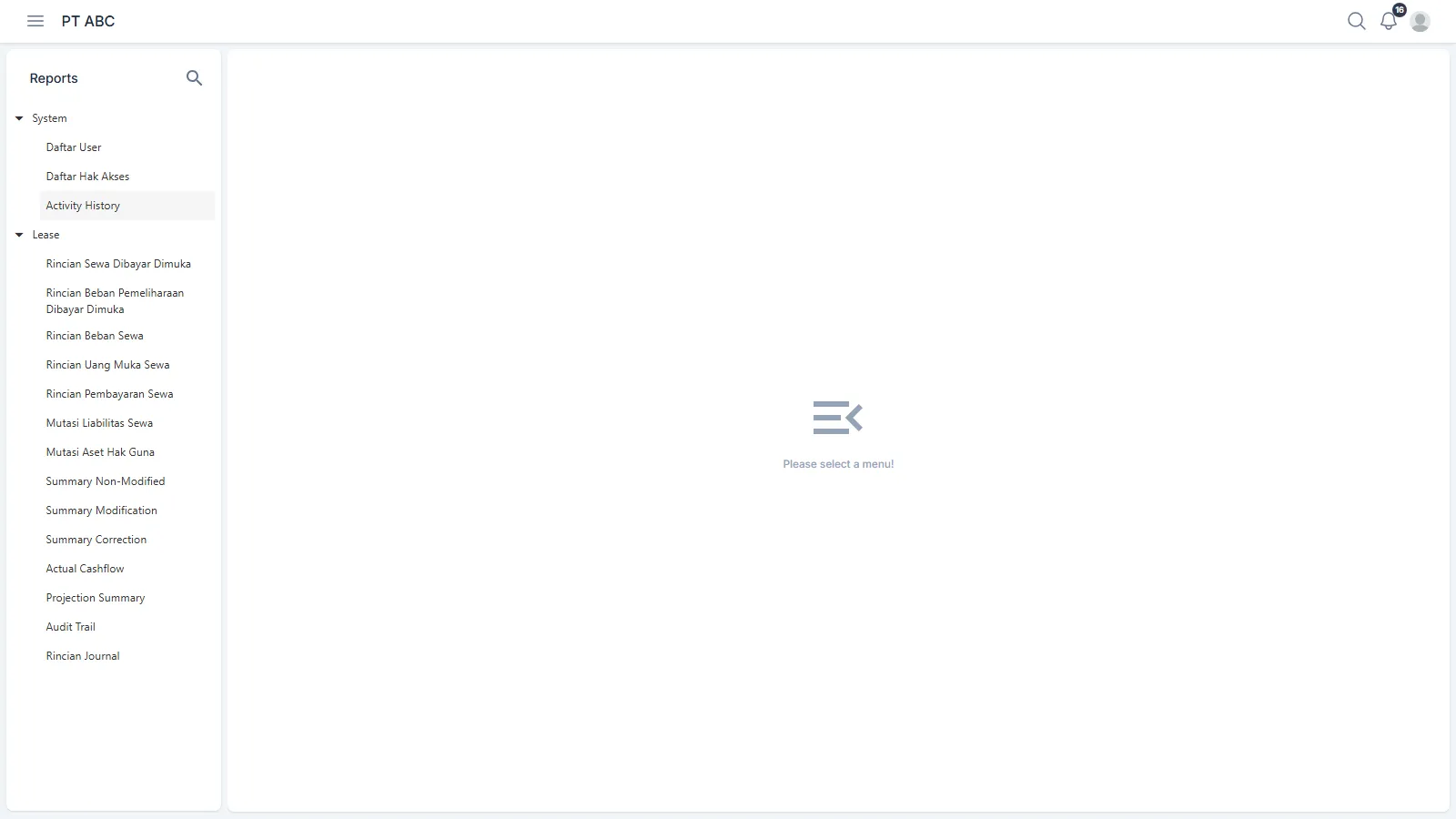
The catalogue is configured per installation. On the installation we examined the tree was split into two groups, and the report names themselves are Indonesian:
| Group | Reports |
|---|---|
| System | Daftar User · Daftar Hak Akses · Activity History |
| Lease | Rincian Sewa Dibayar Dimuka · Rincian Beban Pemeliharaan Dibayar Dimuka · Rincian Beban Sewa · Rincian Uang Muka Sewa · Rincian Pembayaran Sewa · Mutasi Liabilitas Sewa · Mutasi Aset Hak Guna · Summary Non-Modified · Summary Modification · Summary Correction · Actual Cashflow · Projection Summary · Audit Trail · Rincian Journal |
Two of them answer a disclosure requirement directly: Mutasi Liabilitas Sewa and Mutasi Aset Hak Guna are the movement schedules for the liability and the ROU asset. Rincian Beban Sewa and Rincian Pembayaran Sewa supply the expense and the cash-outflow sides.
Parameters and outputs. Every report carries its own parameters, then a single Output Type choice. The table view offers a Download button; the other choices produce a file or a preview.
Things to watch for. Match the report catalogue in your environment against the disclosure list the standard requires at setup, not at your first close. A report that does not exist yet is configuration work, and configuration takes time.
Home and System
Section titled “Home and System”Home is the first screen after sign in, holding five widgets: Task › To Do, Task › Recent, Task › Pending Items, Transaction › Summary and Transaction › Details. Rows in the first two widgets click straight through to their record.
System › System Settings carries all the master data, split into Lease Management, Finance & Accounting, General Tables and System Parameters. The full list, and the order to fill it in, is in Preparing for your first close.
System › System Security carries Users and Access Rights.
What Nextera Accord does not have
Section titled “What Nextera Accord does not have”So that your implementation scope does not stretch on assumptions:
- There is no lessor accounting module. Lessor is master data about the party granting the lease. The lessor side, and sublease measurement, are not run here.
- There is no Print button. What exists is Extract, to export a grid to Excel, and Preview on a report screen.
- Journal Feeds is not a journal import. It is an outbound queue.
- Ledger has no dimension breakdown. The route to that is Reports.
- Standards other than PSAK 116 / IFRS 16 have no screens. What ships to customers is lease accounting, and only that.